





Using Vail Health MyChart
MyChart is now the ONE place where you can get medical records, message a provider and so much more for all your health needs within the Vail Health system, including Colorado Mountain Medical, Shaw Cancer Center, Howard Head Sports Medicine, Vail Health Behavioral Health, Vail Healthspan, Vail Health Clinics, and Vail Health hospital.
Sign Up
Already have MyChart through UCHealth or one of the organizations listed below?
If so, you do not need to create a new account. Use your existing MyChart username and password to log in to Vail Health MyChart.
This includes MyChart accounts from regional organizations such as:
- UCHealth (including Anschutz Medical Campus, Highlands Ranch Hospital, Yampa Valley Medical Center and other UCHealth locations)
- Gunnison Valley Health
- SummitStone Health Partners
- Valley View Hospital
- Other hospitals and clinics that use UCHealth’s MyChart
If you don’t remember your username or password, use the “Forgot login information?” link instead of creating a new account.
Have MyChart through a different health system, or never had a MyChart account?
Follow the steps below to create your MyChart account.
FYI – if you don’t have an activation code that is OK, just scroll down and click “Sign up with your information”
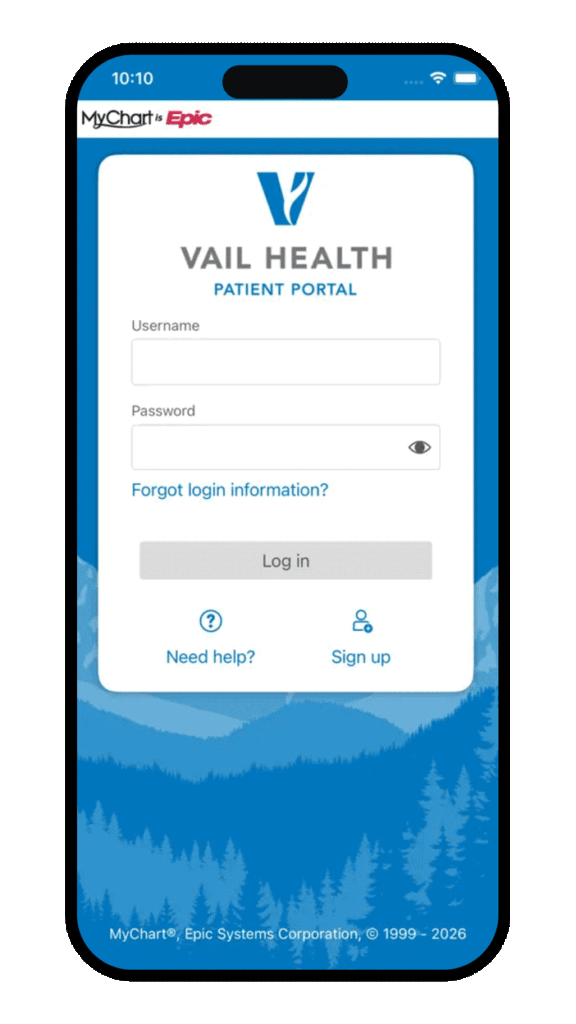
1. Go to MyChart.org/VailHealth.
2. Click Sign Up under the Log In button.
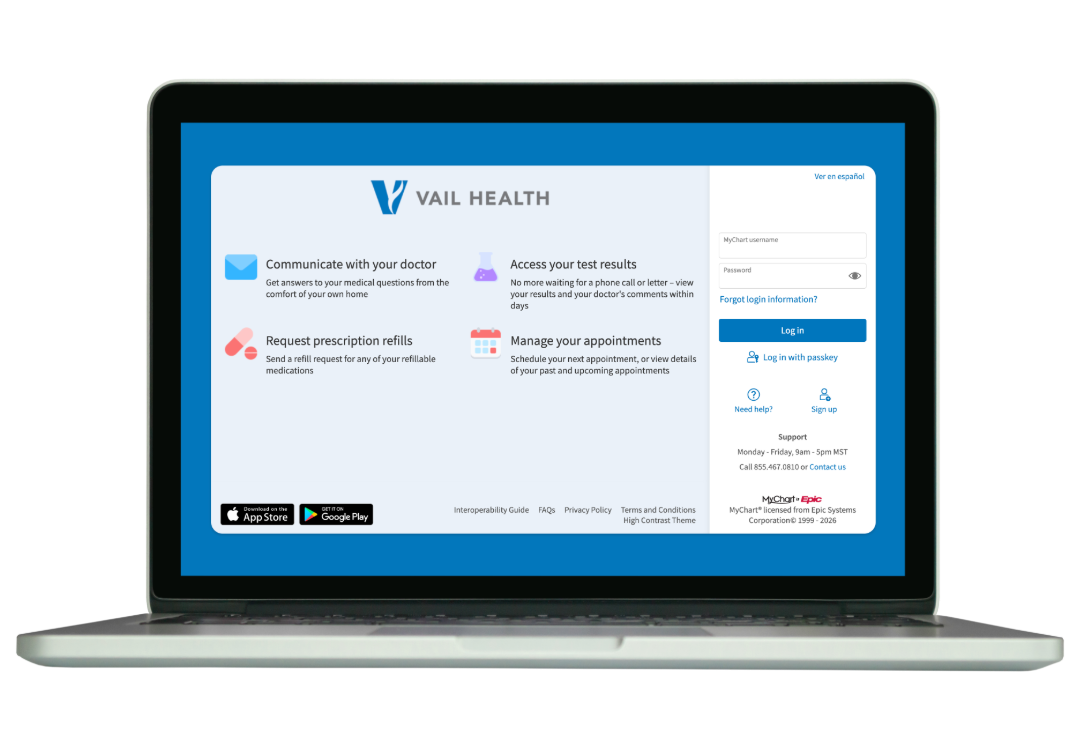
3. Enter your preferred phone number or email.
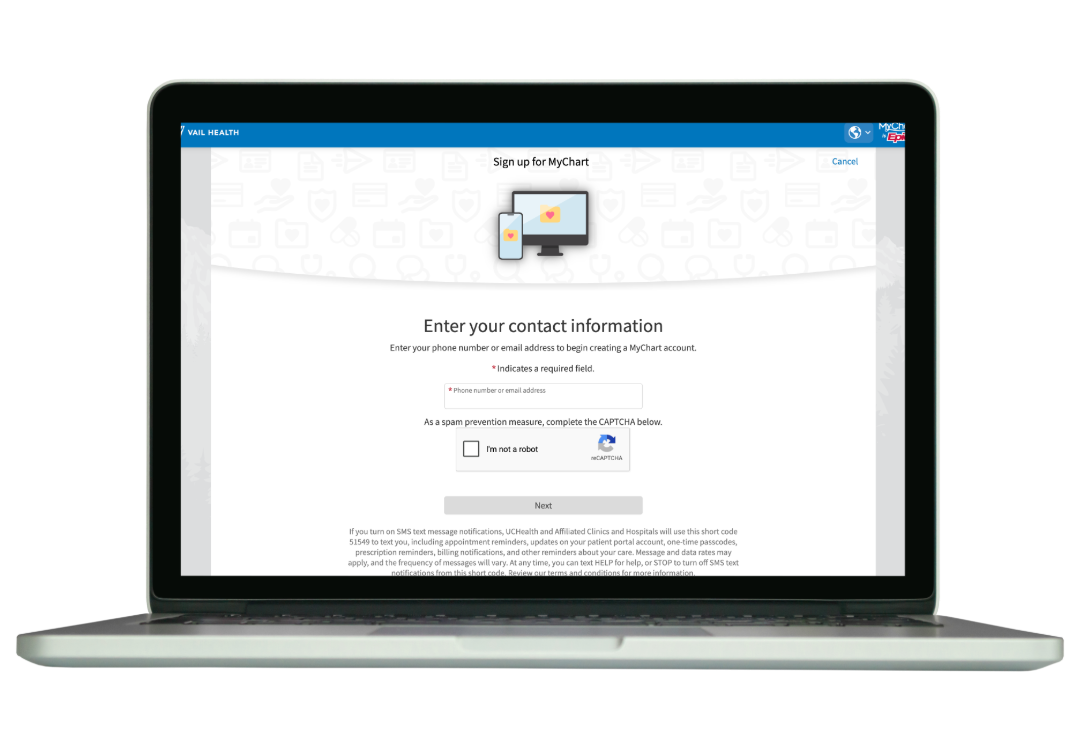
4. Verify your identity via the phone number or email entered in the previous step.
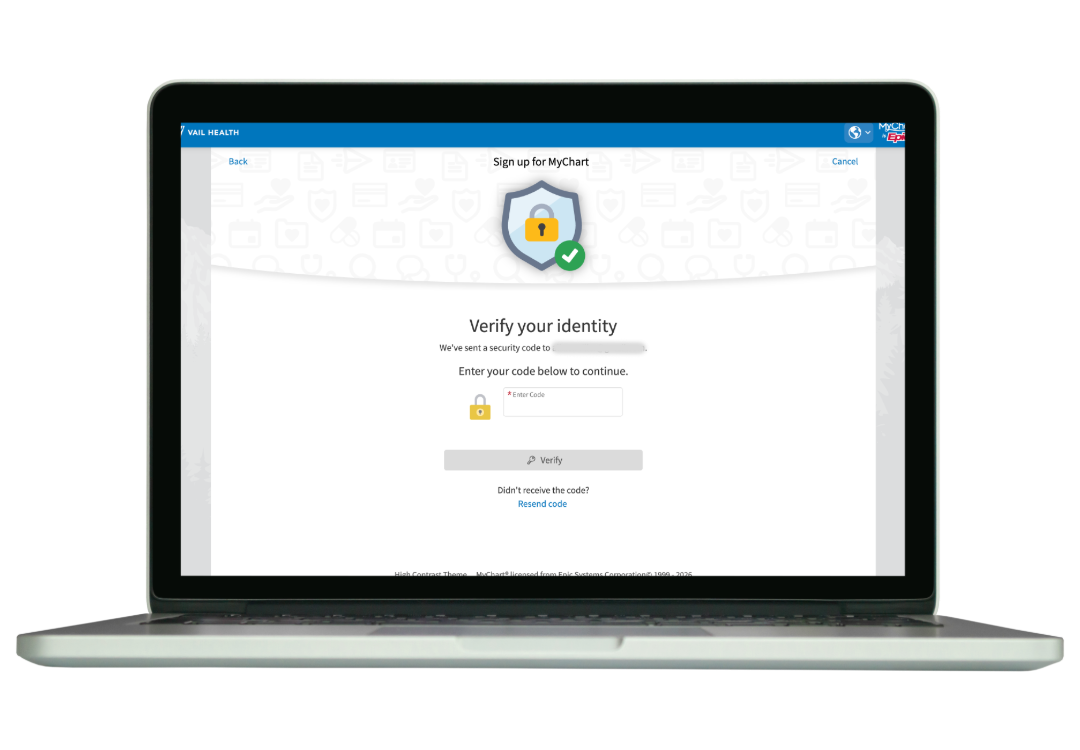
5. Enter your birth date that matches your clinic chart.
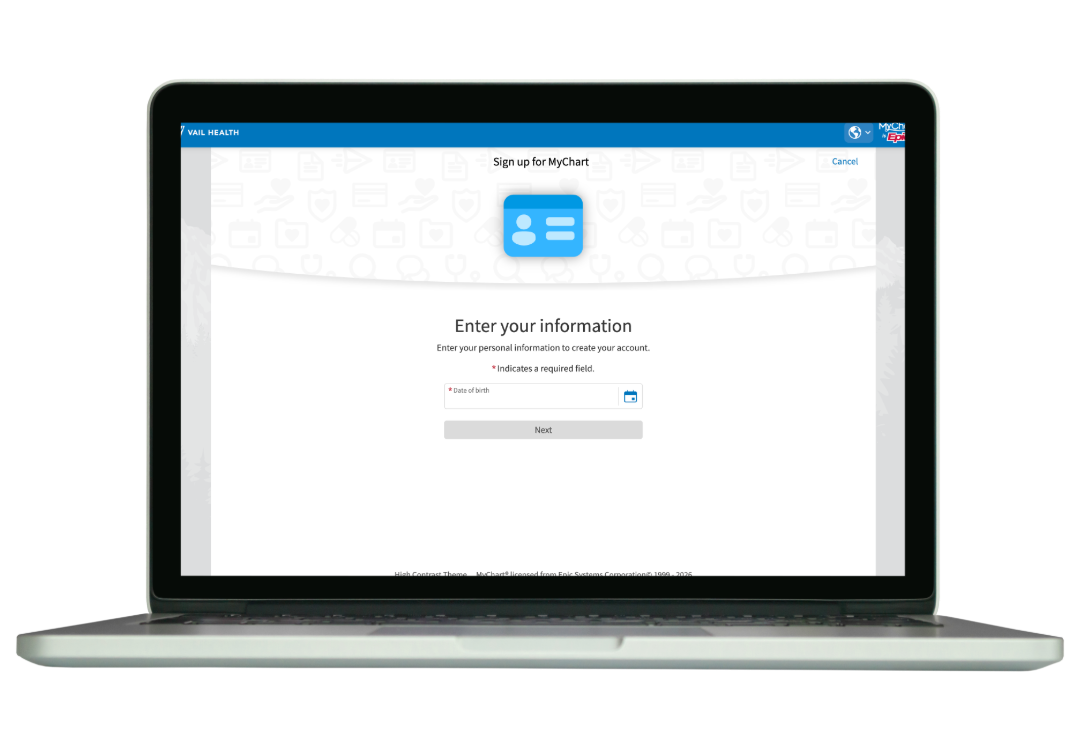
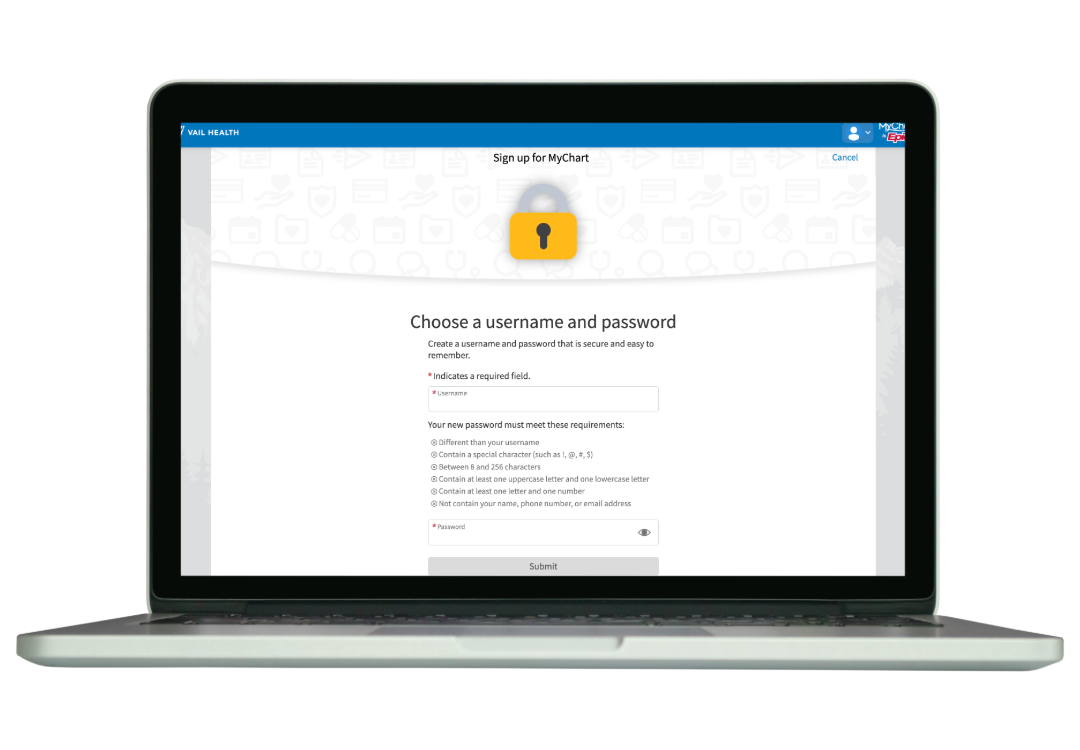
6. Pick a unique username and password.
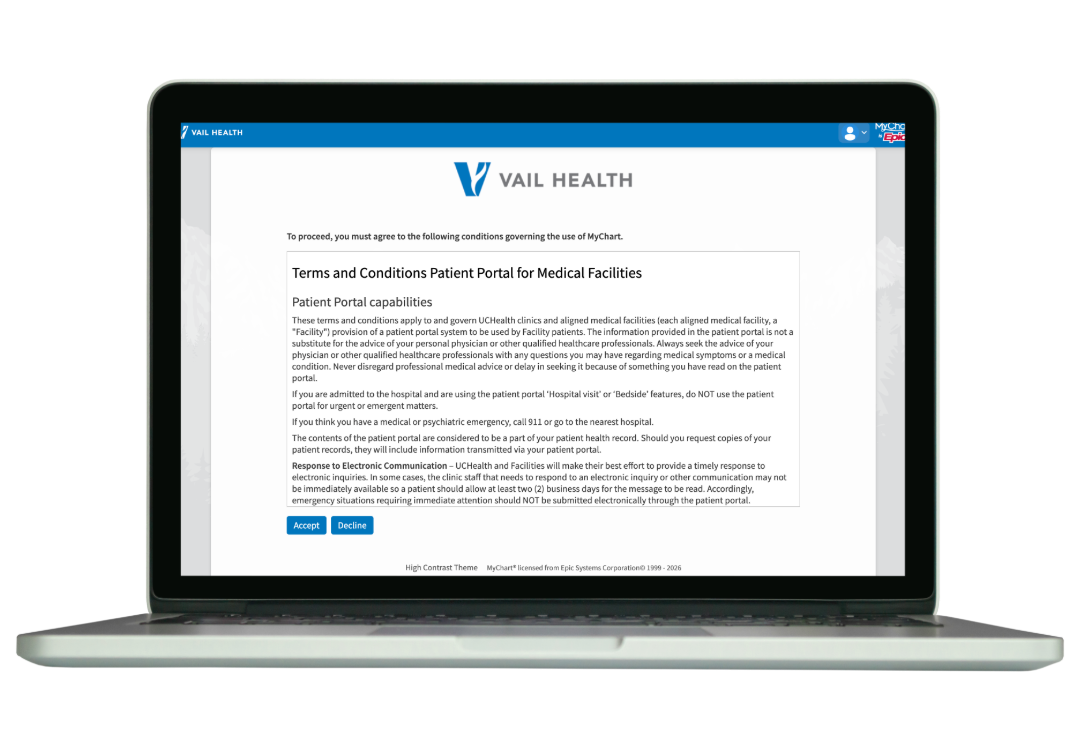
7. Accept the terms and conditions.
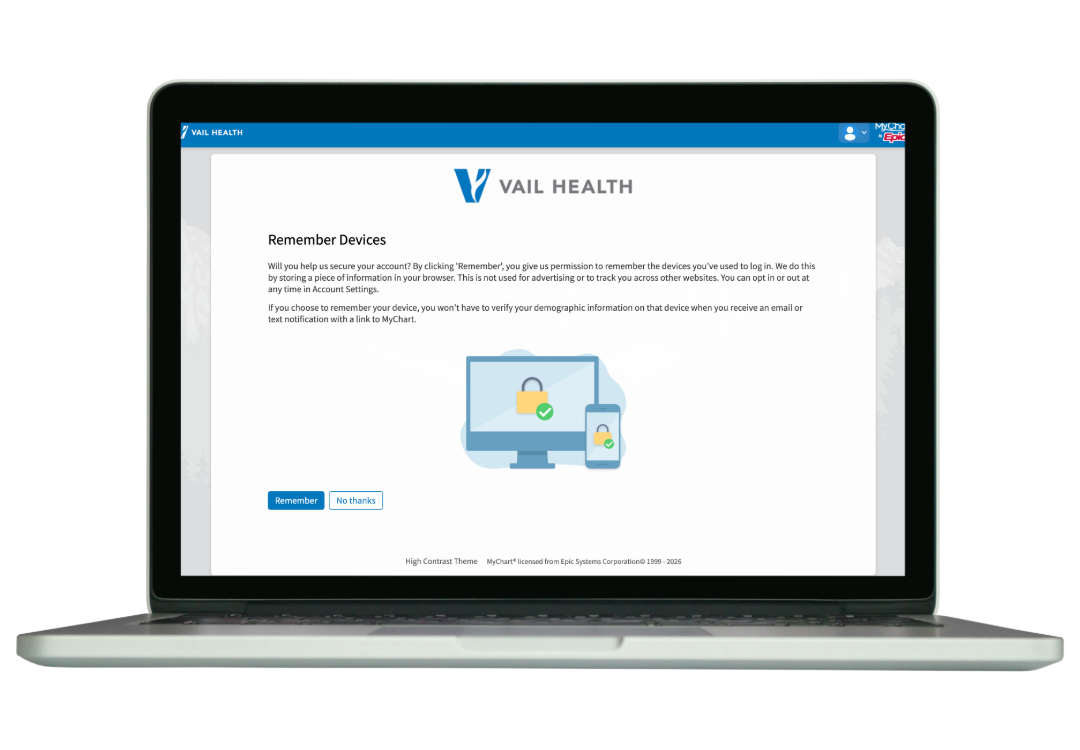
8. Select whether to remember the device or not.
9. Optional: Learn more by watching the MyChart welcome tour video.
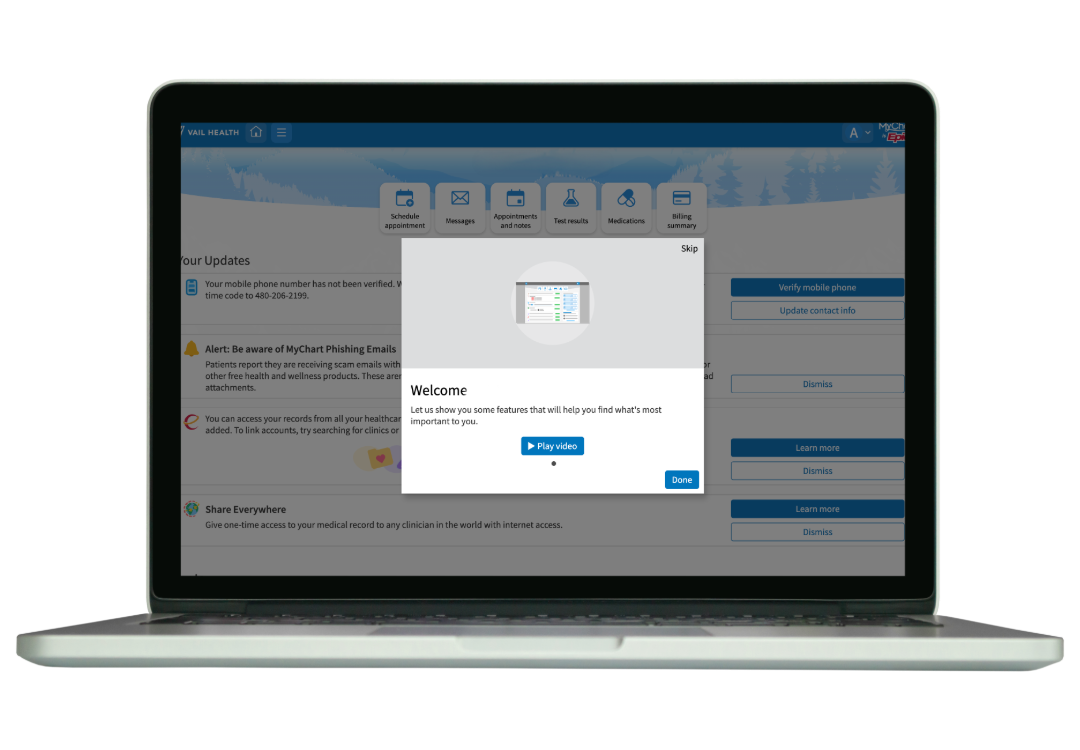
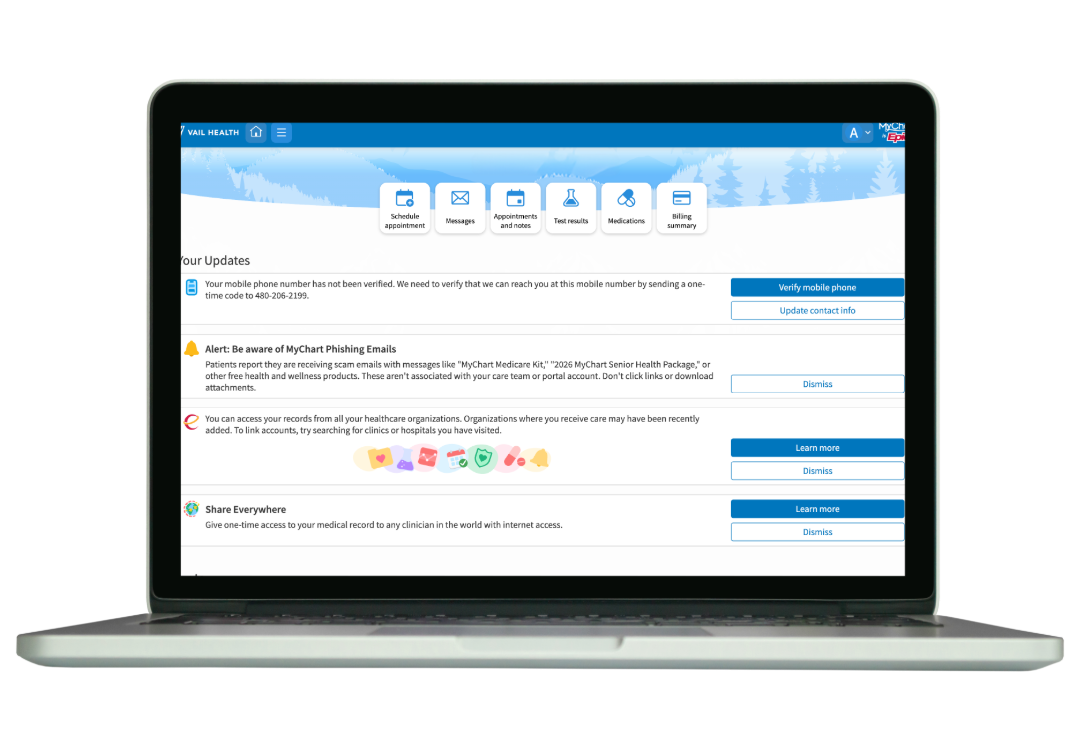
10. Explore your MyChart & complete actions in the account Updates section.
Download the App
- Go to your Apple store or Google play store.
- Search for Vail Health MyChart.
- Choose Download or Install.
- After download is complete, open the app and accept the policy & agreements.
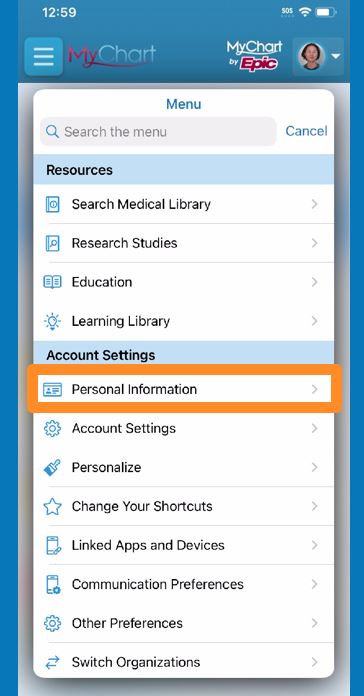
Update Personal Information
Note: may be slightly different depending on the device used.
- Go to Menu (top left) > Settings > Personal Information.
- After verifying who you are, please go in and make sure your information is correct.
- Once done, select Save Changes.
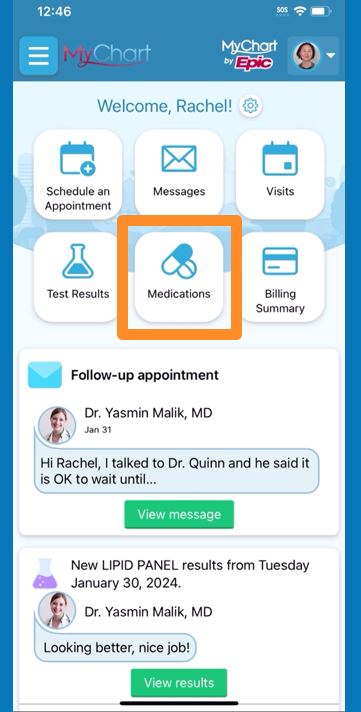
Refill Medications
- From the home page, select Medications.
- From the medication list, select Request Refills.
- Select the checkbox next to the medications you want to refill and then select Next.
- Select a Delivery Method and Pharmacy, and then select Next.
- Review the details of your refill request and select Submit.
Message Your Care Team
Note: may be slightly different depending on the device used.
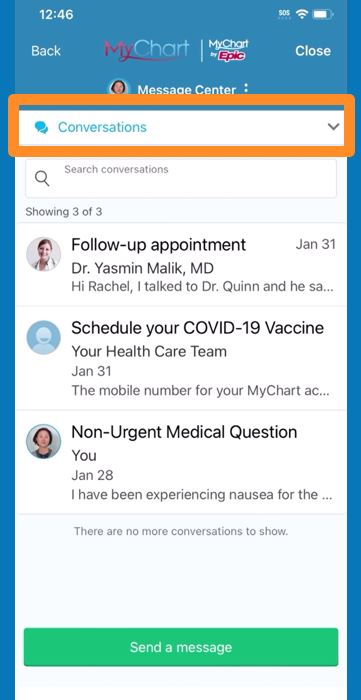
- From the home page, select Messages.
- Select Send a Message.
- A prompt appears asking what type of question you have. Select the correct option.
Depending on your selection, you’ll see additional prompts. Follow those to continue.
View Test Results
- From the home page, select Test Results.
- Select a test (like cholesterol).
- View your results.
- If desired, from the Test Details page:
- Compare Results, View Trends and Download results
Other patient resources available through MyChart:
- Schedule an appointment
- Review bill
- Apply for financial assistance
Access Legacy Portal Information
You can access your previous electronic medical records in FollowMyHealth (Colorado Mountain Medical) and Cerner (Vail Health) until Sept 30, 2027. Please download any pertinent results, imaging or messages from your current electronic medical record to share with your Vail Health doctors. Vail Health care teams can upload any records, images and results you bring to your appointments into your MyChart account. You will be unable to message your doctor’s office in your current electronic medical record after September 25, 2026.
Information that will transfer:
Conditions, allergies, medications, immunizations, etc.
Information you should download:
Test results, imaging, messages and other records that you may want to keep.
Instructions on how to download information from your current electronic medical record are found below.
Additional MyChart Support
Sign Up Tips
Create or Connect Your MyChart
New to MyChart? Create a new user account. If you have used MyChart at another medical facility, learn how you can connect your MyChart accounts across entities with your current MyChart login.
FAQs
Frequently Asked Questions
Looking for more information about the MyChart platform and what it means for you? Get instant support through our FAQs.
Billing Support
Important Billing Information
Learn how and where to view bills for appointments prior to the Oct. 3 electronic medical record transition, as well as how to access and conveniently pay consolidated bills through the new MyChart patient portal.
Help Line & Email Support
For additional questions about your account, please call (855) 467-0810, email patientportal@vailhealth.org or click the button below and fill out the quick form.